
Below are step by step instructions for how to set up Slack notifications using Webhooks.

1. Create a Slack app
Pick a name and choose a workspace to associate your app with, then click Create App. If you've already created an app, you can use that one.
TIP: After creating your app, you can change its icon under Basic Information > Display Information. If you would like to do so, you can download icons for both ShotPut Pro and ShotPut Studio below.
2. Enable incoming webhooks
You'll be redirected to the settings page for your new app (if you're using an existing app, you can load its settings via your app's management dashboard).
From here, select Incoming Webhooks, and toggle Activate Incoming Webhooks to on.
3. Create an incoming webhook
Now that incoming webhooks are enabled, the settings page will refresh and new options will appear. One of those options is a called Add New Webhook to Workspace.
What this button does is trigger a shortcut version of the installation flow for Slack apps, one that is completely self-contained so that you don't have to actually build any code to generate an incoming webhook URL.
Select a channel that the app will post to, then click Authorize.
You'll be sent back to your app settings, where you should see a new entry under the Webhook URLs for Your Workspace section. Your webhook URL will look something like this:
https://hooks.slack.com/services/T00000000/B00000000/XXXXXXXXXXXXXXXXXXXXXXXXXX
4. Add the webhook URL to your notifications
Now, open your Imagine Products application and go to Settings > Notifications. Here, under the section titled Slack Webhooks, select Add and then copy and paste your webhook URL into the corresponding box.
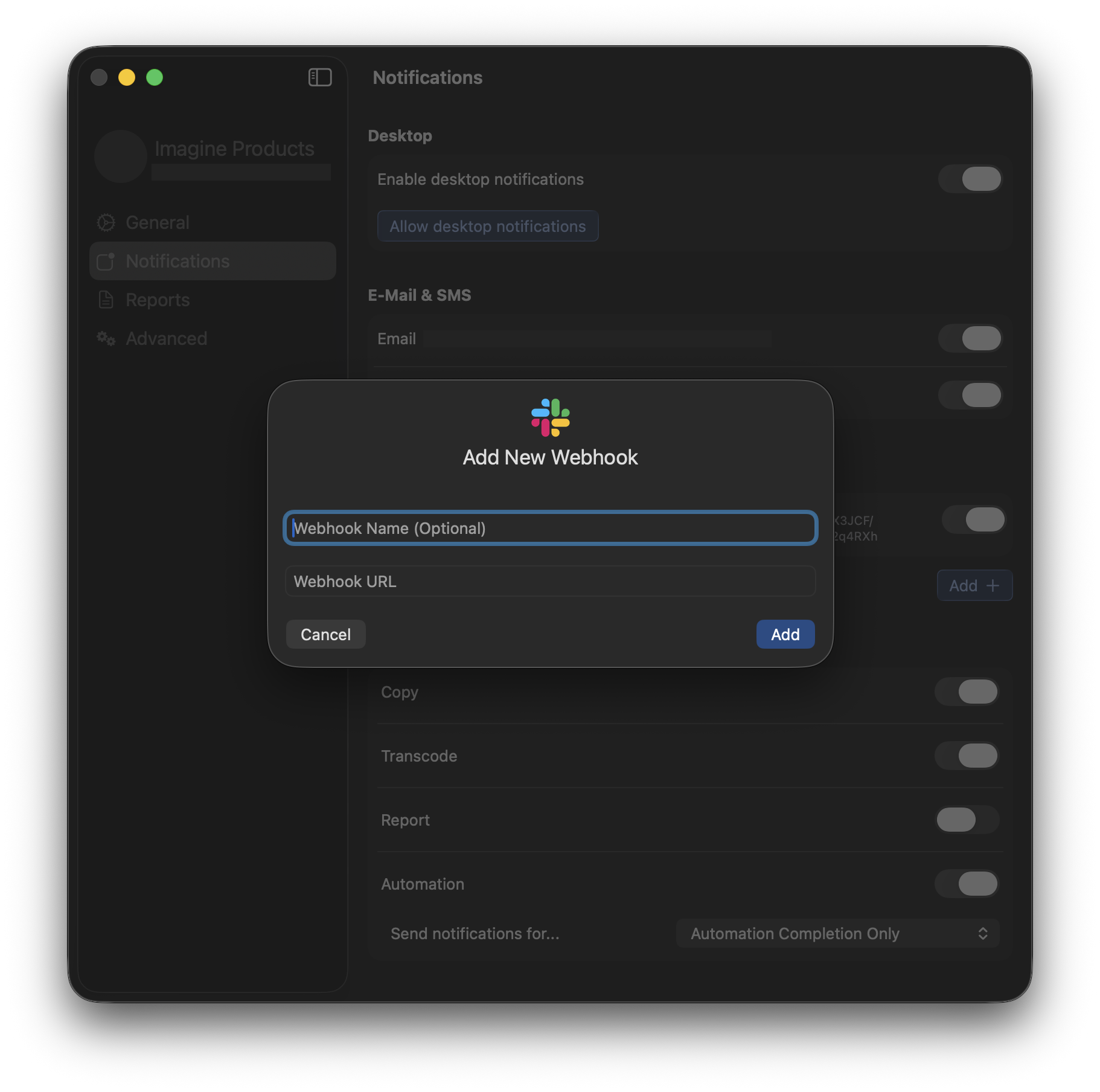
Upon job completion, notifications will now be sent to the corresponding workspace and channel you selected to associate your webhook with.